Sign in and sign out
Sign in with your email and your password. Your administrator gives you an access link to choose your password.
Who can do this: every user, whatever their role.
Choose your password with an access link
Section titled “Choose your password with an access link”Your administrator sends you an access link when they create your account, or when you forget your password.
-
Open the link.
-
Note the address in Email. You sign in with this address.
-
In New Password and Confirm New Password, type your password. It needs at least 6 characters.
-
Select Save Password and Sign In.
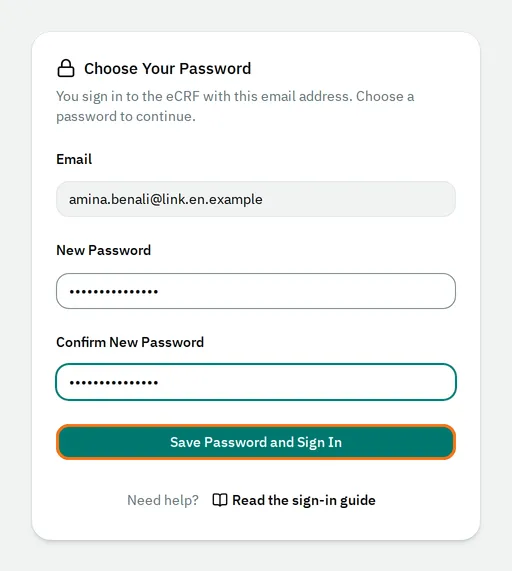
The eCRF signs you in and opens the list of your studies.
If the link no longer works
Section titled “If the link no longer works”The eCRF shows This Link No Longer Works.
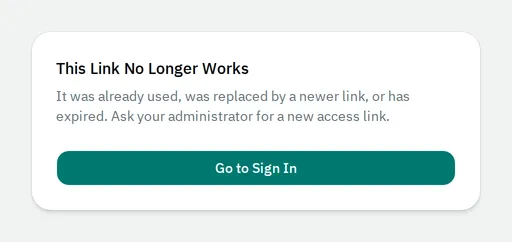
A link works once, for 30 days, and a new link cancels the previous one. Ask your administrator for a new link.
Sign in
Section titled “Sign in”-
Open the address of the eCRF that your organization gave you.
-
In Email, type your email.
-
In Password, type your password.
-
Select Sign In.
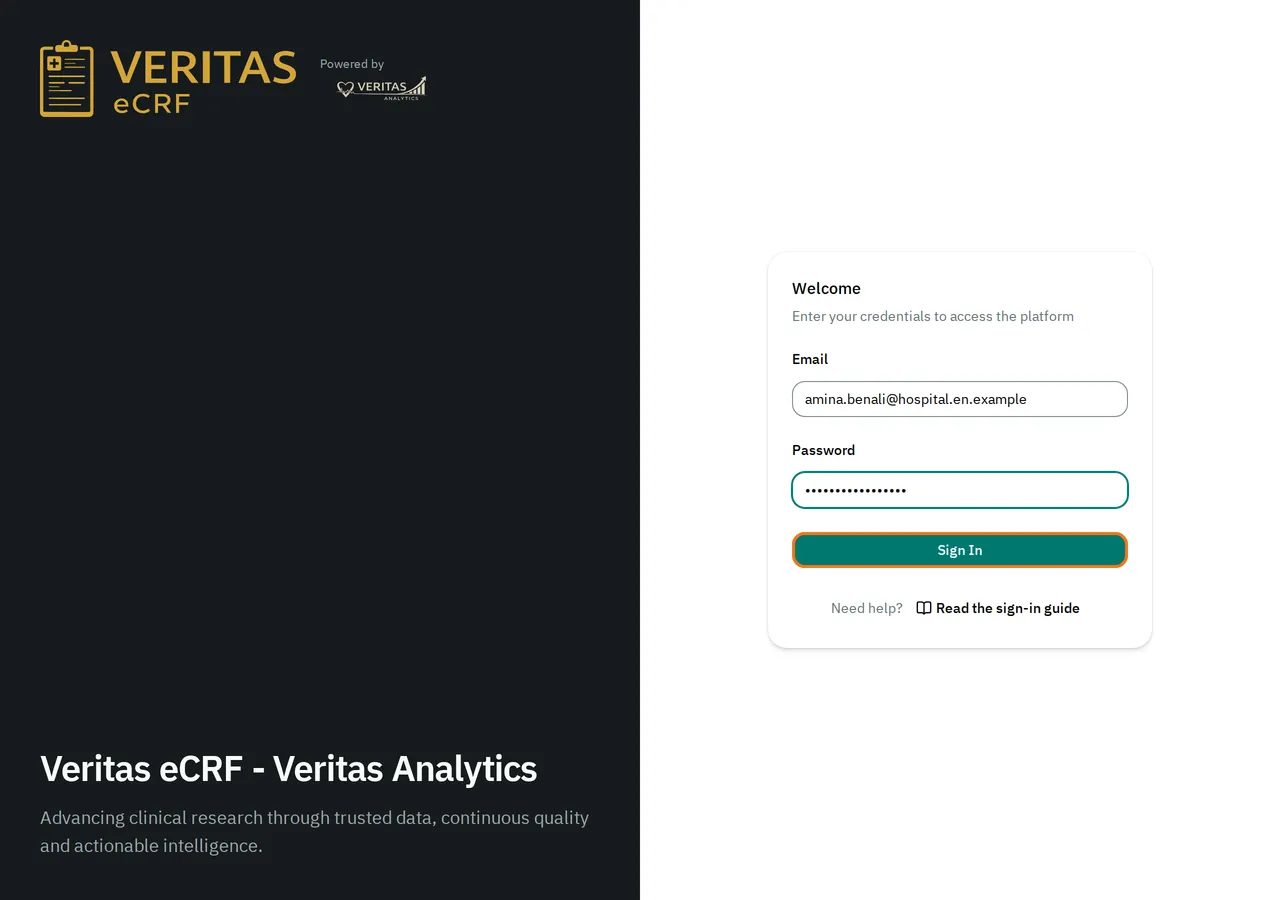
The eCRF opens the list of your studies. To open one, see Select a study.
If you opened a link to a page of the eCRF before you signed in, the eCRF opens that page instead.
If your administrator gave you a password instead of an access link, the eCRF asks you to choose a new password the first time you sign in. See Change your password.
If the email or password is incorrect
Section titled “If the email or password is incorrect”The eCRF shows The email or password is incorrect. and clears the form.
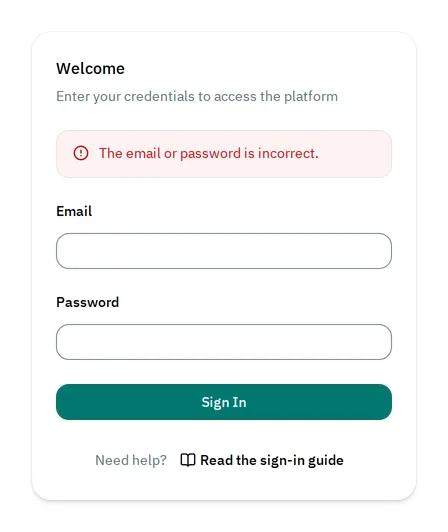
Check your email and password. Then sign in again. If you forgot your password, ask your administrator for an access link.
If your account is locked
Section titled “If your account is locked”After 5 failed attempts in a row, the eCRF locks your account for 10 minutes. Even when you type the right password, it shows Too many failed attempts. Try again later.
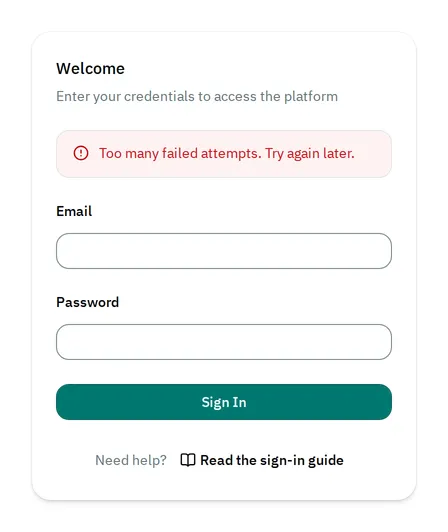
Wait 10 minutes. Then sign in again. If you cannot wait, ask your administrator to unlock your account.
Sign out
Section titled “Sign out”-
At the top right, select your name.
-
Select Sign out.
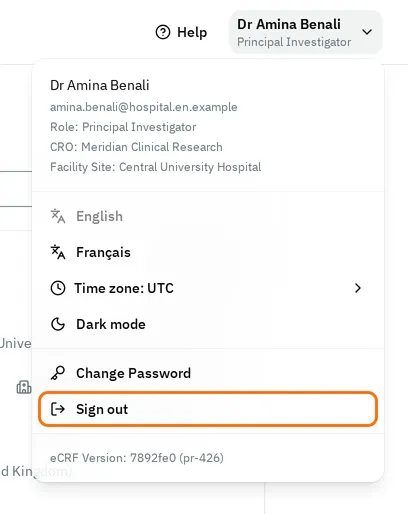
The eCRF signs you out of this browser only. If you are signed in on another computer, you stay signed in there.
If your session expires
Section titled “If your session expires”Your session expires when the eCRF cannot reach the server for 2 hours, for example while your computer sleeps. The eCRF then hides the page and shows Your session has expired.
-
In Password, type your password.
-
Select Sign In.
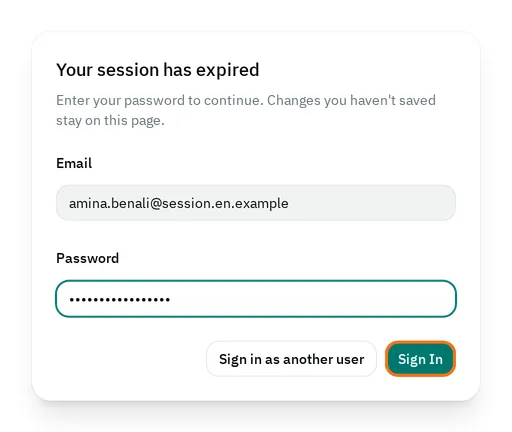
The eCRF shows the page again, with the changes that you did not save.
To sign in as another user, select Sign in as another user. If you leave the page, you lose the changes that you did not save.