Unlock a user's account
After five wrong passwords in a row, the eCRF locks the user’s account for 10 minutes. Wrong passwords count when the user signs in. They also count when the eCRF asks for their password again, for example to sign off a subject or to lock a study. While the account is locked, the eCRF shows Too many failed attempts. Try again later. when the user signs in, even with the right password.
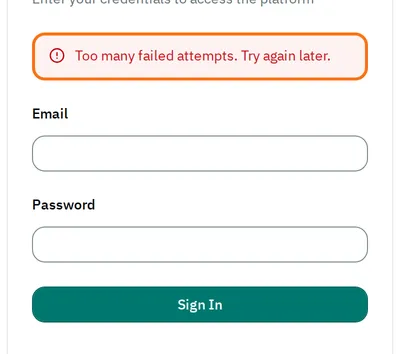
The account unlocks by itself after 10 minutes. To let the user sign in sooner, unlock it in the admin.
Who can do this: System Administrator and Clinical Research Administrator. A Clinical Research Administrator unlocks the users of their own organization only.
Unlock the account
Section titled “Unlock the account”-
In the admin, open Users. Open the user.
-
Select Force Unlock.
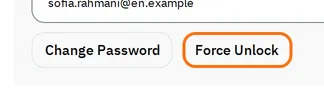
The admin shows Successfully unlocked, and the user can sign in again.
The admin does not show whether an account is locked, and Force Unlock works on any account. If you are unsure, unlock it. For an account that is not locked, this only resets its count of wrong passwords.
If the admin shows Document modified
Section titled “If the admin shows Document modified”An unlock changes the user, so the page you unlocked the account from is out of date. If you change the user on that page, the admin shows Document modified.
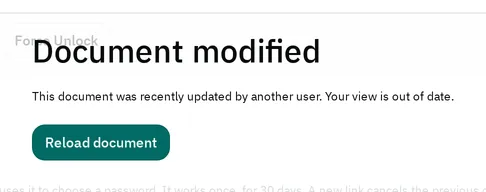
Select Reload document. Then make your change again.
Give an access link
Section titled “Give an access link”If the user forgot their password, give them an access link. The eCRF sends no email, so you give it to them yourself.
-
Open the user in Users.
-
Under Access Link, select Create Access Link.
-
Select Copy Link.

-
Send the link to the user.
The user chooses a new password with the link, and the eCRF signs them in. The link also unlocks the account. It works once, for 30 days, and a new link cancels the previous one.